Three Fractal Channel
Builds two parallel lines from the last three confirmed fractals and leaves the position visible on each bar as rows of dots. It is not a band that always surrounds price.
Coming soon · MT5 only · no licence file needed
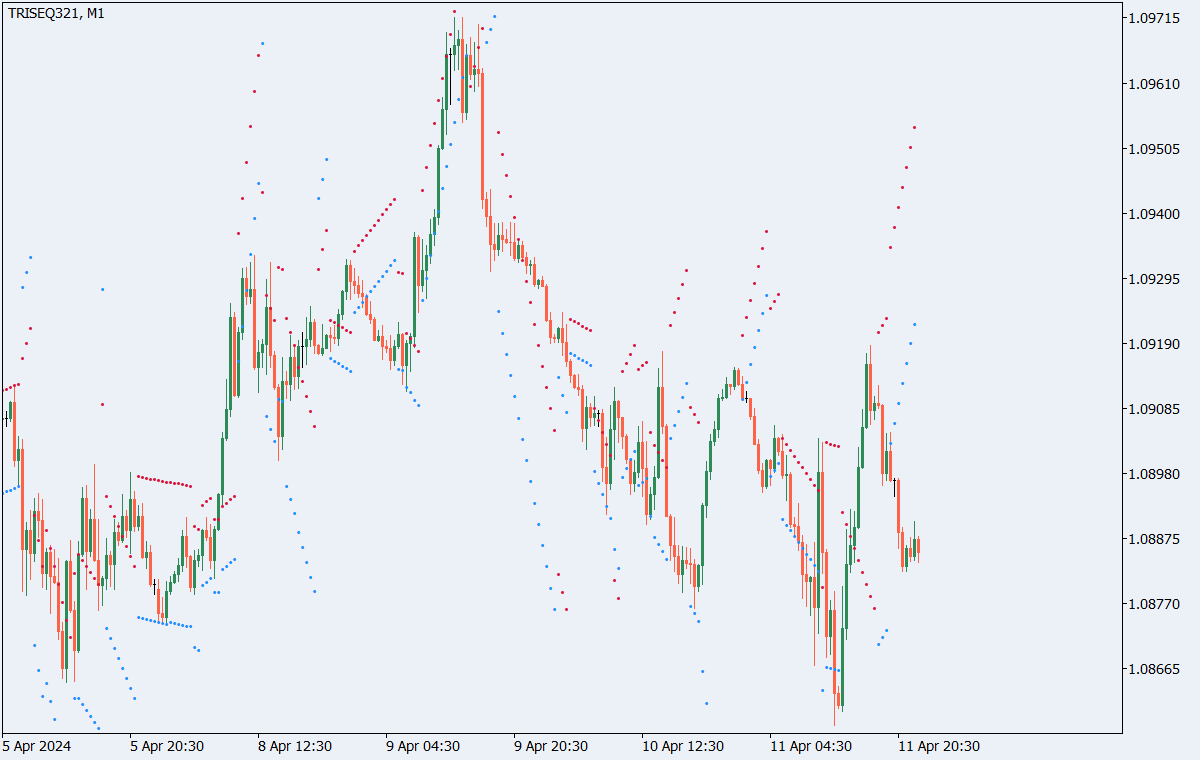
Examples with changed settings are in the manual.
Main settings
| Input | Default |
|---|---|
| Offset (points, -1000 to 1000; negative narrows) | -3 |
| Closed Bars Only | true |
| Show Trilogy brand and QR code | true |
| Brand position (chart corner) | Lower left |
| Brand horizontal offset (pixels) | 10 |
| Brand vertical offset (pixels) | 10 |
Usage specifications
Time of confirmation
Values are used from the time the 2nd bar to the right closes, not from the center of the peak or trough. They are not values that were known at the time of the center bar.
Provisional display on the latest bar
With Closed Bars Only=false, the high and low of the forming bar make fractals form or lapse. Distinguish the latest lines and marks from confirmed values.
Recalculation
In normal updates with the same inputs and the same history, output on closed bars is not changed afterward. Settings changes, additions to or corrections of the history, and reloading trigger recalculation.
3 points and line history
When the set of 3 points changes, it switches to a new line. Past dot rows keep their positions at the time. No trendline object extending into the future area on the right is drawn.
For on-screen display only
The display is a record of calculation results. It does not direct trading decisions and does not guarantee future price movements.
Full manual
How to read the display, the settings, installation and what to check when something goes wrong, on one page. The product is in preparation for release; the manual is published so that you can review its content.
- MT5 display and examples of changed settings
- How to read it in 30 seconds
- What it measures
- Situations for reading the display
- Steps for checking the display
- Installation and checking the package contents
- Settings
- Usage specifications
- Troubleshooting and usage notes
- Technical information and specification details