Oscillator Divergence Marks
Compares an oscillator's peaks and troughs and the price highs and lows on those bars with earlier peaks and troughs. Regular and hidden divergences are recorded with marks in a separate window on the bar where the peak is confirmed.
Coming soon · MT5 only · no licence file needed
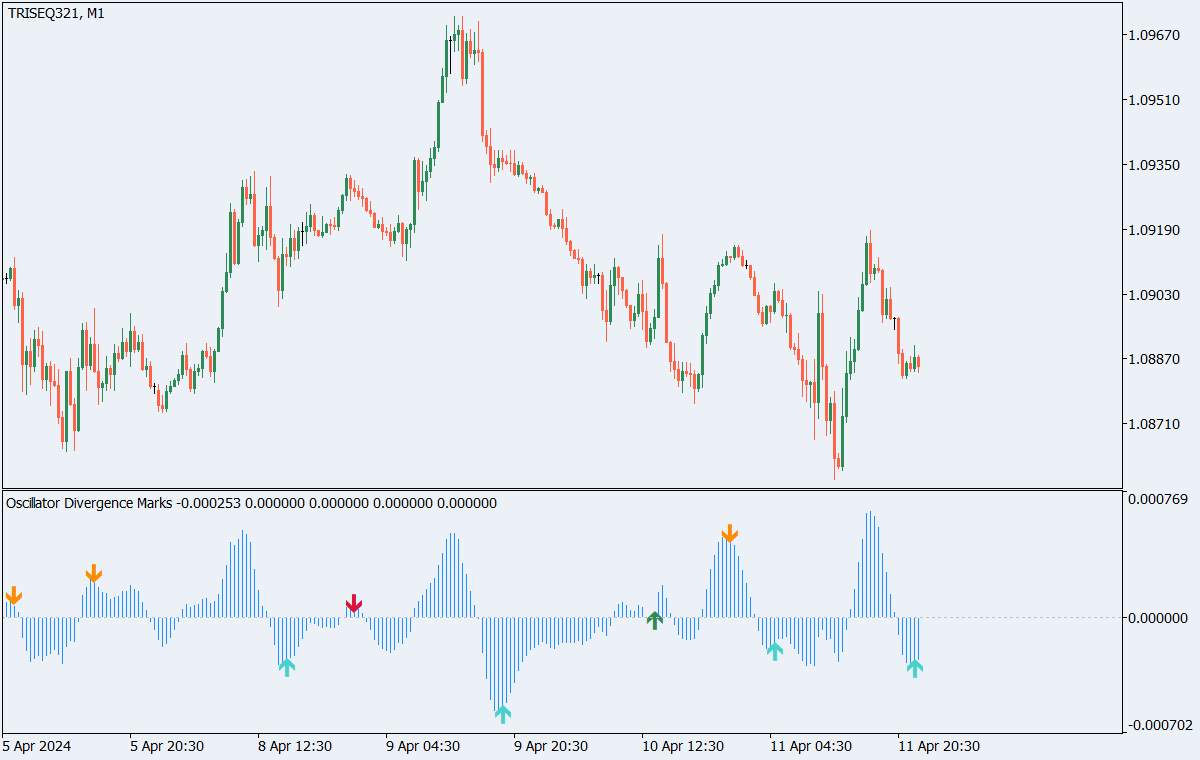
Examples with changed settings are in the manual.
Main settings
| Input | Default |
|---|---|
| Oscillator | OsMA |
| Fast EMA (OsMA, MACD) | 12 |
| Slow EMA (OsMA, MACD) | 26 |
| Signal SMA (OsMA) | 9 |
| RSI Period | 14 |
| Stochastic %K Period | 5 |
| Stochastic Slowing | 3 |
| Peak Rule | Zero-Cross Waves |
| Left Bars (Zero-Cross Waves) | 2 |
| Right Bars (Zero-Cross Waves) | 1 |
| Minimum Peak Size (Zero-Cross Waves) | 0.0 |
| Show Hidden Divergence | true |
| Show Trilogy brand and QR code | true |
| Brand position (chart corner) | Lower left |
| Brand horizontal offset (pixels) | 10 |
| Brand vertical offset (pixels) | 10 |
Usage specifications
Forming bar
The value of the latest forming bar changes. There is no Closed Bars Only input. Read it separately from bars after they close.
History and recalculation
Settings changes, additions to or corrections of the history, and reloading redo the calculation. This is not a guarantee that "closed bars never change under any circumstances".
Brand display
A common display is shared among products of the same medium on the same chart. If several are loaded, the settings of the registration that enabled the display first are used, so changing one may not change the appearance.
For on-screen display only
This product does not place orders or trade automatically. It does not guarantee accuracy as a trading signal or profits.
Full manual
How to read the display, the settings, installation and what to check when something goes wrong, on one page. The product is in preparation for release; the manual is published so that you can review its content.