MTF ATR
Overlays as lines the ATR of the chart's timeframe and of longer timeframes. The unit can be pips, points or price, and a common multiplier can be applied to all lines.
Coming soon · MT5 only · no licence file needed
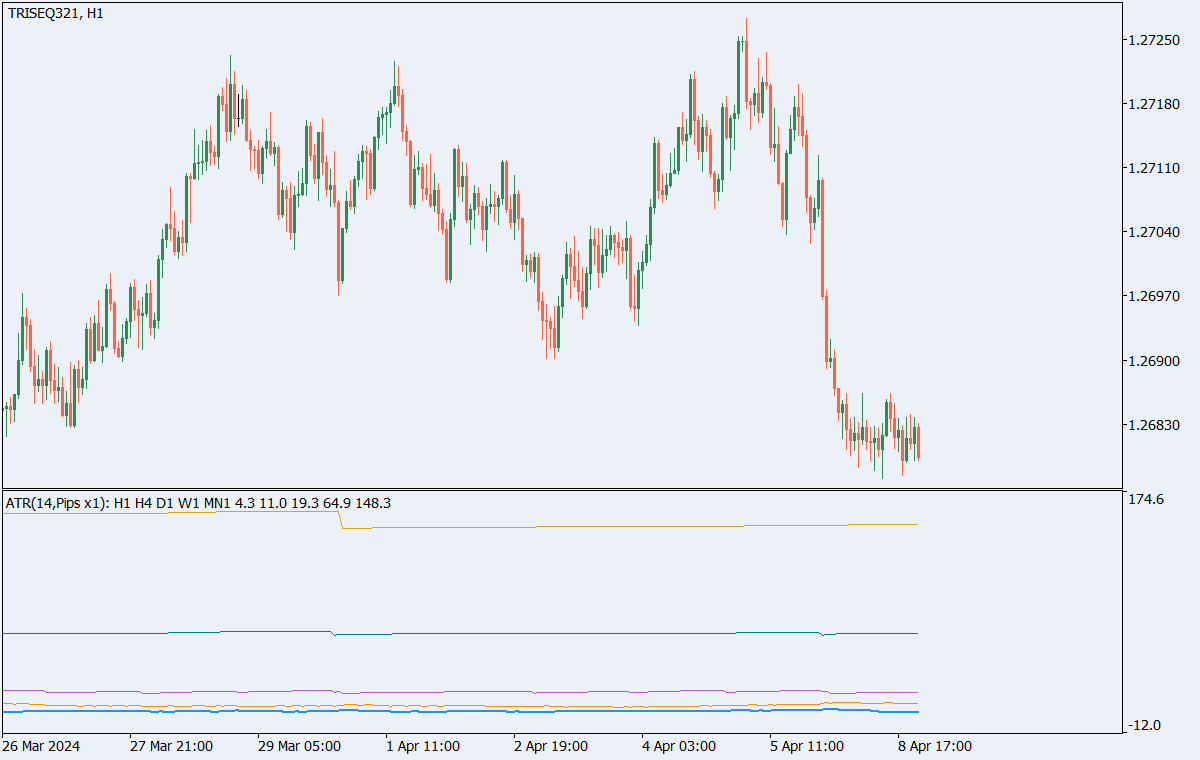
Examples with changed settings are in the manual.
Main settings
| Input | Default |
|---|---|
| ATR Period | 14 |
| Units | Pips |
| Range Multiplier | 1 |
| Number Of Timeframes | 5 |
| Higher Timeframe Value | Forming Bar (As Of Each Chart Bar) |
Usage specifications
Higher timeframes are built from the current chart
It does not read the history of other timeframes directly; it groups the bars loaded in the current chart. There are no higher-timeframe bars older than the chart's history. For longer timeframes, the section containing the chart's first bar is not used. In calculations for the same timeframe, the first bar is also used.
Day, week and month boundaries
In server time, the boundary is 00:00 for daily bars, Sunday 00:00 for weekly bars and 00:00 on the 1st of the month for monthly bars. Sections without bars are not filled with new bars. If there are bars on Sunday, that day is also counted as 1 daily bar.
Results change with the history
The calculation is redone when the chart's history is added or corrected, or when the oldest bar or the settings change. For recursively calculated EMA, SMMA, RSI and ADX, past values and colors may also change. It is not guaranteed that past displays remain unchanged under all conditions.
Handling while forming and after closing
Forming Bar changes during the latest bar. Closed chart bars are designed to keep the values known up to that bar. Last Closed Bar uses the closed value from 1 bar before on that timeframe, so the state is the same while within the same higher-timeframe bar. Recalculation caused by changes in history or settings is an exception.
Reading the value of the previous higher-timeframe bar
If the chart bar 1 before is within the same higher-timeframe bar, its value is not that of the previous higher-timeframe bar. Refer to the last bar of the higher-timeframe section 1 before, or use Last Closed Bar.
The 0 in the header and empty lines
Lines for which there are not enough higher-timeframe bars for the calculation are not drawn. In this case, the 0 in the header is not a measured ATR of 0 but an indication of insufficient calculation. Even with enough bars, a true ATR of 0 is possible during periods when the price does not move.
Relationship with the standard ATR
The line for the chart's own timeframe is the simple average of true range, the same as the MT5 standard ATR. For higher timeframes, the start of the history and the forming/closed timing differ, so the value is not unconditionally the same as the standard ATR on a separate chart.
Colors are not fixed per timeframe
From shortest: blue, orange, purple, teal, ocher, blue-gray, dark pink, brown, navy. H1 is blue on an H1 chart, but on an M1 chart with 9 slots it is the 5th, ocher. When you change the chart's timeframe, also check the order of the names.
Only 1 instance of the same product on 1 chart
This manual describes adding 1 instance of this product to 1 chart. To compare different settings, use separate charts.
For on-screen display only
This product is for displaying calculation results on the screen. It does not guarantee future price movement.
Full manual
How to read the display, the settings, installation and what to check when something goes wrong, on one page. The product is in preparation for release; the manual is published so that you can review its content.
- MT5 display and examples of changed settings
- How to read it in 30 seconds
- What it measures
- Situations for reading the display
- Steps for checking the display
- Installation and checking the package contents
- Settings
- Usage specifications
- Troubleshooting and usage notes
- Technical information and specification details