MACD Studio
Selects the averaging method, histogram and colouring and shows the relationship between MACD and its signal together.
Coming soon · MT5 only · no licence file needed
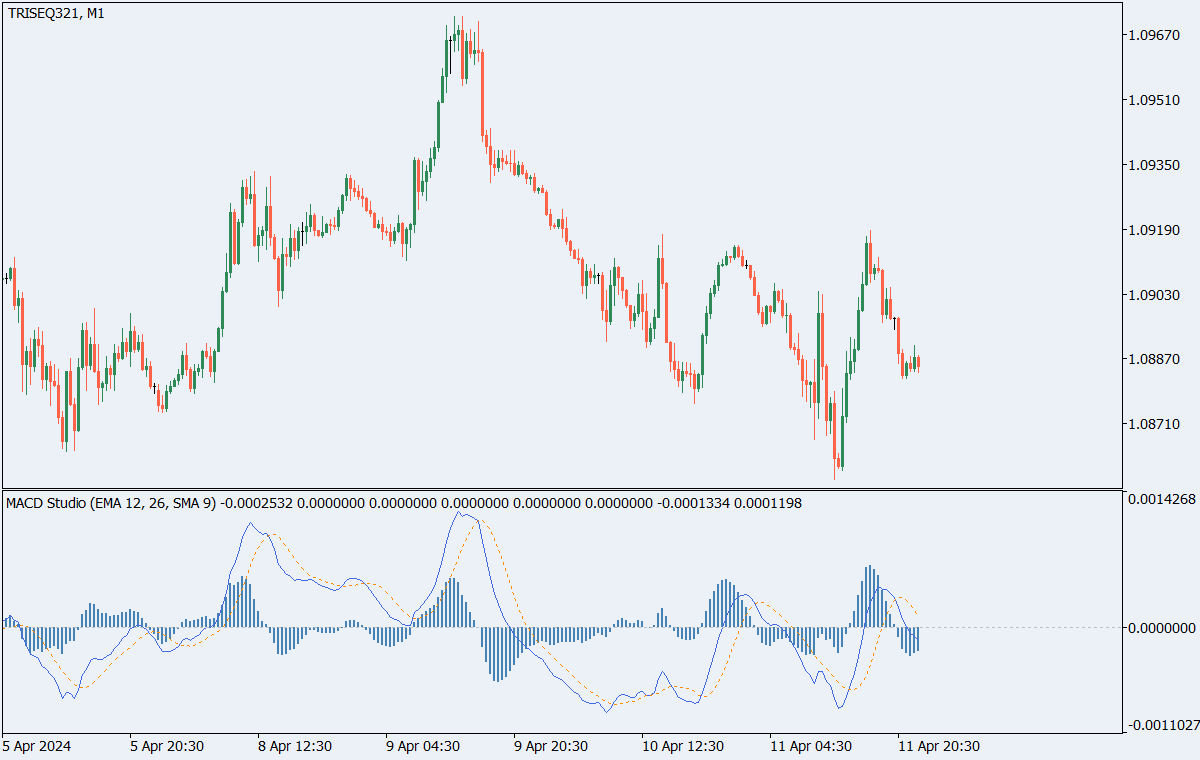
Examples with changed settings are in the manual.
Main settings
| Input | Default |
|---|---|
| Fast Period | 12 |
| Slow Period | 26 |
| Signal Period | 9 |
| Fast MA Method | Exponential |
| Slow MA Method | Exponential |
| Signal MA Method | Simple |
| Price | Close |
| Gaussian Order | 3 |
| Gaussian Stages | 4 |
| Range Scaling Bars (0 = off) | 0 |
| MACD Multiplier | 1 |
| Histogram | MACD minus Signal |
| Histogram Multiplier | 1 |
| Histogram Colours | One Colour |
| Band Period (0 = off) | 0 |
| Band Multiplier | 0.75 |
| Show MACD Line | true |
| Show Signal Line | true |
| Show Trilogy brand and QR code | true |
| Brand position (chart corner) | Lower left |
| Brand horizontal offset (pixels) | 10 |
| Brand vertical offset (pixels) | 10 |
Usage specifications
Display only
It does not place, modify or close orders. There are no notifications or emails either.
History and initial values
Values on the forming bar are updated. Differences in data provider, symbol, timeframe and history start position affect the values and initial values.
Display units
Check the scale of the separate window. Do not treat the state bar heights, price differences and ratio displays as the same scale.
Brand display
Shows Produced by Trilogy Inc. and a QR code to https://www.trgy.co.jp/. When the same medium is used on the same chart, the display is shared. There is no account authentication.
For on-screen display only
The display is a record of calculation results. It does not direct trading decisions and does not guarantee future price movements.
Full manual
How to read the display, the settings, installation and what to check when something goes wrong, on one page. The product is in preparation for release; the manual is published so that you can review its content.
- MT5 display and examples of changed settings
- How to read it in 30 seconds
- What it measures
- Situations for reading the display
- Steps for checking the display
- Installation and checking the package contents
- Settings
- Usage specifications
- Troubleshooting and usage notes
- Technical information and specification details