Fractal Volume Classes
Compares the tick volume around a confirmed peak or trough and the range per unit of volume with the previous opposite peak or trough, and classifies them with dots in four colours. The dots are shown on the confirming bar, not at the centre of the peak or trough.
Coming soon · MT5 only · no licence file needed
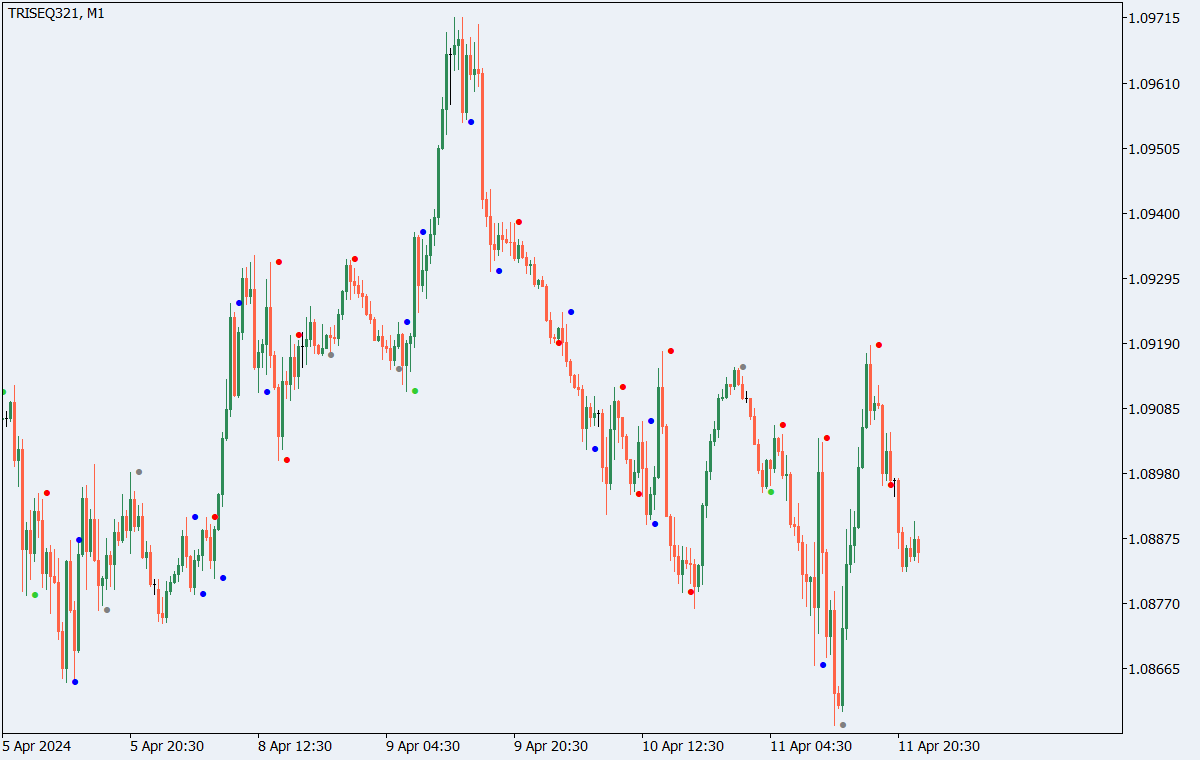
Examples with changed settings are in the manual.
Main settings
| Input | Default |
|---|---|
| Fractal Rule | MT4 Forms Of 5 To 9 Bars (2 bars after) |
| Bars On Each Side (Window rule, 1 to 50) | 2 |
| Volume Change Percent (1 to 1000) | 100 |
| Distance From The High Or Low (points, 0 to 10000) | 0 |
| Closed Bars Only | true |
| Show Trilogy brand and QR code | true |
| Brand position (chart corner) | Lower left |
| Brand horizontal offset (pixels) | 10 |
| Brand vertical offset (pixels) | 10 |
Usage specifications
Quantities compared
Uses tick volume, not actual traded volume or value. M is the sum of high−low of each bar in the window divided by V.
When not classified
There may be no dot when there is nothing to compare with, the same side comes first, the window is insufficient, V is 0, or the value falls on a condition boundary.
Dot position
By default, dots are placed 2 bars after the center c, and Window at c+B. Because the price of a dot is the high or low of the candidate, it may be away from the candle of that bar.
Changes to history and settings
The case where subsequent bars increase with the same history and settings is different from filling in or correcting the history or changing the start position. Recalculating with changed history or settings may also change past display.
For on-screen display only
The display is a record of calculation results. It does not direct trading decisions and does not guarantee future price movements.
Full manual
How to read the display, the settings, installation and what to check when something goes wrong, on one page. The product is in preparation for release; the manual is published so that you can review its content.
- MT5 display and examples of changed settings
- How to read it in 30 seconds
- What it measures
- Situations for reading the display
- Steps for checking the display
- Installation and checking the package contents
- Settings
- Usage specifications
- Troubleshooting and usage notes
- Technical information and specification details